Create a Discord webhook
1
Open the channel settings
In Discord, open the settings of the channel where alerts should be posted.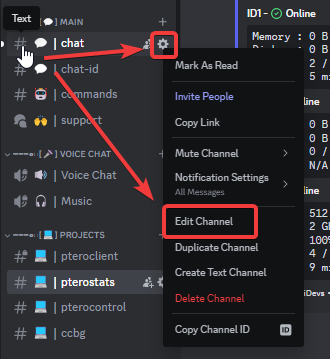
2
Go to webhooks
Select Integrations, then View Webhooks or Create Webhook.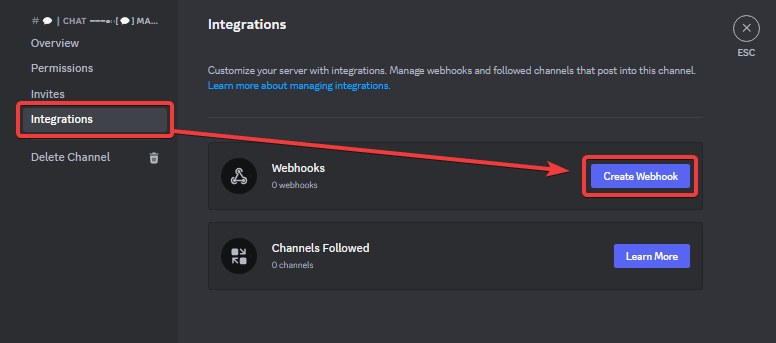
3
Copy the webhook URL
Create a new webhook and select Copy Webhook URL.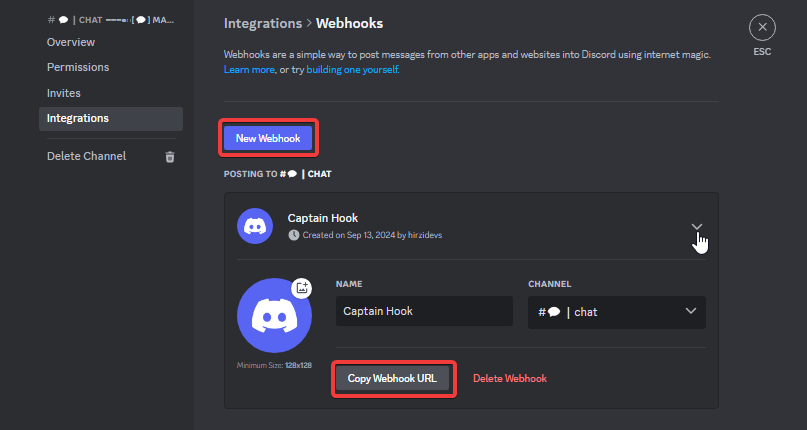
Enable the notifier
1
Edit the config
Open 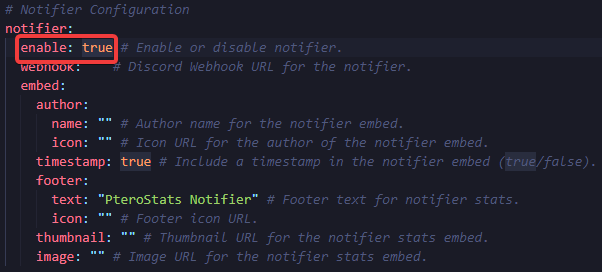
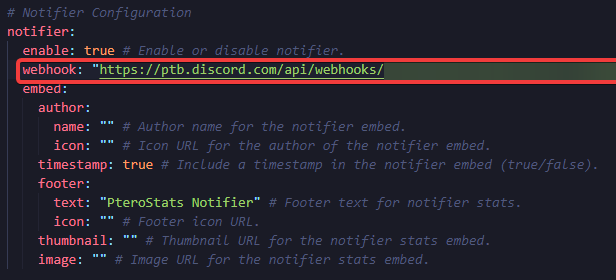
config.yml, set enable to true under notifier, and paste your URL into webhook.config.yml
2
Restart PteroStats
Restart the app/bot so it loads the updated config.
Customize the alert
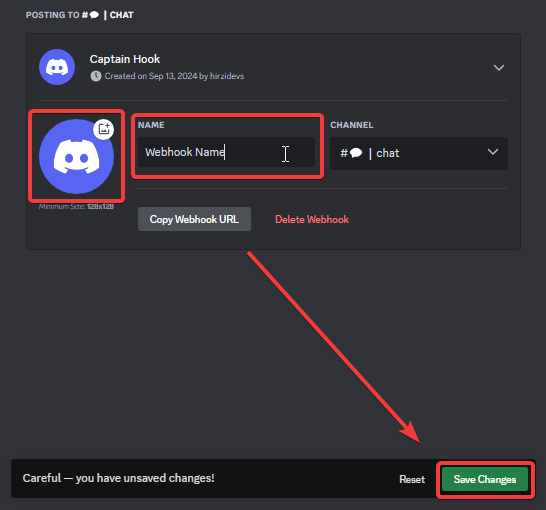
- Name and avatar: change the webhook’s name and icon in its Discord settings.
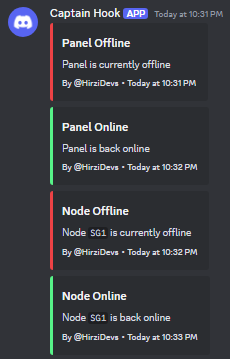
- Embed: adjust the
author,footer,timestamp,thumbnail, andimageoptions undernotifier.embedinconfig.yml.